I maintain ConfigMgr Lab Builder, a PowerShell 7 + Hyper-V engine that builds a working ConfigMgr 2509 lab from a bare Windows host. One cmdlet, no external module dependencies, MIT licensed.
Import-Module .\modules\HomeLab\HomeLab.psd1
Install-HomeLab
About an hour later, that gives you this:
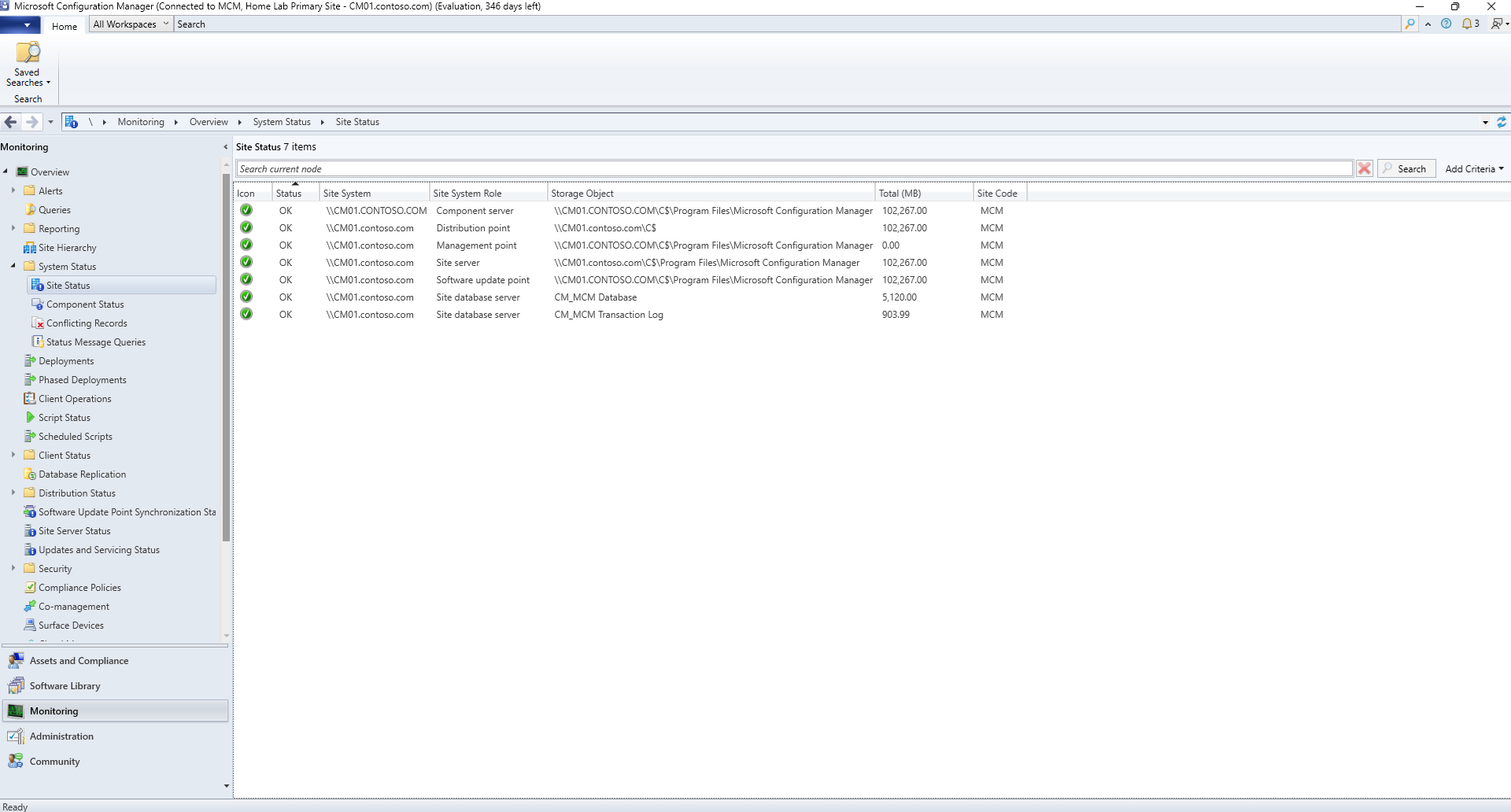
Seven site systems, all OK: component server, management point, distribution point, software update point, site server, and both site database objects. Nothing to click through afterward.
The topology is a config file
Every lab is described by a data file, not a script. This is most of the default 3-VM topology:
@{
    LabName    = 'HomeLab'
    DomainName = 'contoso.com'
    SiteCode   = 'MCM'
    Network    = '192.168.50'

    VMs = @(
        @{
            Name           = 'DC01'
            Roles          = @('DomainController','CertificateAuthority')
            IP             = '192.168.50.10'
            Memory         = 2GB
            Processors     = 2
            AutoStartDelay = 30
        }
        @{
            Name           = 'CM01'
            Roles          = @('SqlServer','SiteServer','ManagementPoint',
                               'DistributionPoint','SoftwareUpdatePoint')
            IP             = '192.168.50.20'
            Memory         = 10GB
            MaxMemory      = 12GB
            Processors     = 4
            OSDiskSize     = 150
            AutoStartDelay = 90
        }
        @{
            Name  = 'CLIENT01'
            Roles = @('Client')
            IP    = '192.168.50.100'
            Memory = 4GB
        }
    )
}
Roles drive everything. Add SoftwareUpdatePoint to a VM and the engine
installs WSUS, configures the SUP, and wires it to the site. Move
SqlServer onto its own VM and you have a split-SQL lab. Seven templates
ship in templates/, from a 2-VM schema exercise up to a 9-VM CAS
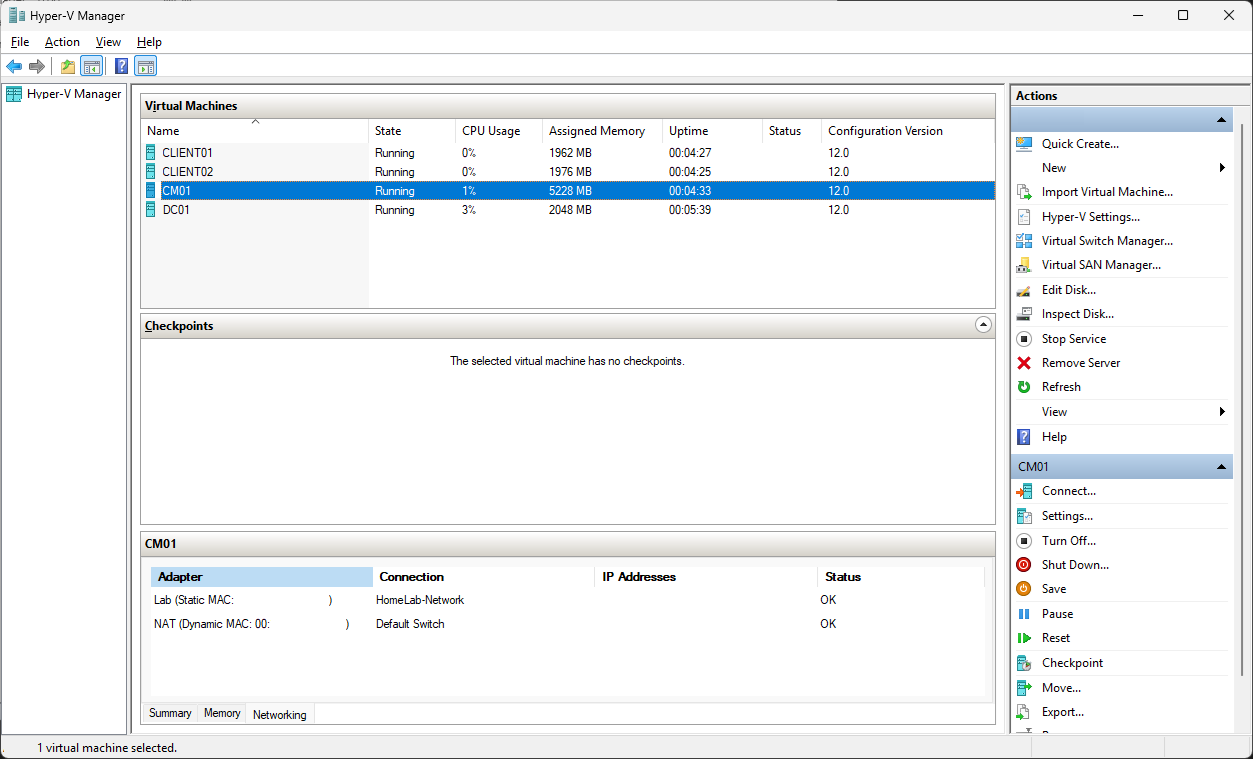
hierarchy. The one I run daily is two-clients — the default lab plus a
second Windows 11 client, so application testing has a clean control
machine instead of a checkpoint rollback:
The numbers
Measured on my host (20 threads, 32 GB, NVMe), with transcripts to back them:
- Bare host to healthy site: about 1 hour 10 minutes. From ISOs. The engine builds sysprepped base images, provisions VMs from differencing disks, promotes the DC, installs SQL 2022, runs CM 2509 setup, and configures the site through to a green health report.
- Teardown and full rebuild from cache: 45 to 65 minutes, depending on topology. Base images cache by ISO hash, so a rebuild skips image creation. CM setup is the long pole and nothing caches that.
- Re-run against a healthy lab: under ten minutes. Every phase probes existing state and short-circuits, so re-running after a config tweak converges instead of rebuilding.
What it replaces
The classic way to get a ConfigMgr lab is a hydration kit: MDT builds an ISO, the ISO automates the OS and role installs, and everything around it is yours to do by hand. Create the VMs, wire the network, boot things in the right order, wait, and clean up whatever is left when you want to start over. It works, and I used that approach for years. The parts it leaves to you are the parts you get wrong at 11 PM.
Install-HomeLab owns the whole loop. It creates the switch, writes the
hosts entries the host needs to reach lab VMs by name, checks that your
topology's startup memory fits the RAM you actually have free right now,
provisions in parallel, and sequences phases with readiness gates.
Teardown you can prove
This is the part I lean on most. Remove-HomeLab tears the lab down, and
a separate audit script enumerates every artifact a lab run can leave
behind, then exits non-zero if it finds any.
Here is a real audit against a running lab:
HomeLab artifact audit -- 2026-08-01 13:28:59
  ImageRoot : C:\LabImages
  Sources   : C:\LabSources
  Identity  : 11 VM name(s), switches: HomeLab-Network, HomeLab-AIO-Network, ...

DIRTY -- 17 artifact(s) found:

Class     Item                                          Detail
-----     ----                                          ------
BaseImage 6ca1f8b97b2b5649.base.vhdx                    16.07GB, modified 07/17/2026
BaseImage 906ec15f3573f719.base.vhdx                    14.13GB, modified 07/17/2026
HostNic   vEthernet (HomeLab-Network)                   host IP 192.168.50.1/24 on lab subnet
HostsFile 192.168.50.10 DC01 DC01.contoso.com           lab entry in ...\etc\hosts
HostsFile 192.168.50.100 CLIENT01 CLIENT01.contoso.com  lab entry in ...\etc\hosts
HostsFile 192.168.50.101 CLIENT02 CLIENT02.contoso.com  lab entry in ...\etc\hosts
HostsFile 192.168.50.20 CM01 CM01.contoso.com           lab entry in ...\etc\hosts
Switch    HomeLab-Network                               type=Internal
TempFile  ...\Local\Temp\HomeLab-VcStage                VC++ redistributable staging folder
VM        CLIENT01                                      state=Running; disk under C:\LabImages
VM        CLIENT02                                      state=Running; disk under C:\LabImages
VM        CM01                                          state=Running; disk under C:\LabImages
VM        DC01                                          state=Running; disk under C:\LabImages
VmDisk    CLIENT01.vhdx                                 25.48GB
VmDisk    CLIENT02.vhdx                                 26.54GB
VmDisk    CM01.vhdx                                     49.63GB
VmDisk    DC01.vhdx                                     19.81GB

Report-only (not counted dirty):
Logs      C:\ProgramData\HomeLab\Logs                   30 log file(s) -- evidence, kept
Sources   C:\LabSources                                 consumed input -- kept

VERDICT: host is DIRTY.
Note what it catches beyond the obvious VMs: the host's own vEthernet adapter still holding an IP on the lab subnet, four hosts-file entries, the vSwitch, and a temp staging folder. It also finds strays — VMs from a config you renamed months ago, discovered by disk location rather than by name. CLIENT02 above came from a different template than the one loaded, and the teardown picked it up anyway:
[WARN] [CLIENT02] not in current config but its disk lives under C:\LabImages;
       adding to removal set
After Remove-HomeLab -KeepBaseImages, the same audit run again:
No lab artifacts found.

Report-only (not counted dirty):
BaseImage 6ca1f8b97b2b5649.base.vhdx  16.07GB (exempted by -AllowBaseImageCache)
BaseImage 906ec15f3573f719.base.vhdx  14.13GB (exempted by -AllowBaseImageCache)
Logs      C:\ProgramData\HomeLab\Logs 30 log file(s) -- evidence, intentionally kept
Sources   C:\LabSources               consumed input (ISOs/packages) -- kept

VERDICT: host is provably clean of lab artifacts.
The exit code matters as much as the text. Invoke-VerifiedE2E.ps1
chains teardown, audit, build, and health check under one transcript, and
refuses to start the build if the audit comes back dirty.
That gate exists because I once shipped a "successful" end-to-end test that had silently consumed a stale cached image from an earlier run. The build passed. It proved nothing. An audit that exits non-zero makes that class of mistake loud instead of quiet.
Two flags control what counts as clean, and they have to agree with each
other. Remove-HomeLab -KeepBaseImages preserves the image cache for
fast rebuilds, and the audit's -AllowBaseImageCache exempts those same
files. For from-scratch validation you pass neither, and the cache has to
go.
What you get on day one
A three-VM lab by default — DC with root CA, site server with SQL 2022 and all roles co-located, Windows 11 client — with the operational details already handled: AD discovery on, boundaries and boundary group built, client push that works on Windows 11 (the engine opens the firewall paths push needs; a default Windows 11 install blocks them even when domain-joined), a test collection with a maintenance window, WSUS and a software update point, and driver choices that current CM actually tolerates. ODBC is pinned to 18.5.2.1 because 18.6.x has a documented NULL regression that breaks CM. MSOLEDB is left alone because CM setup installs its own.
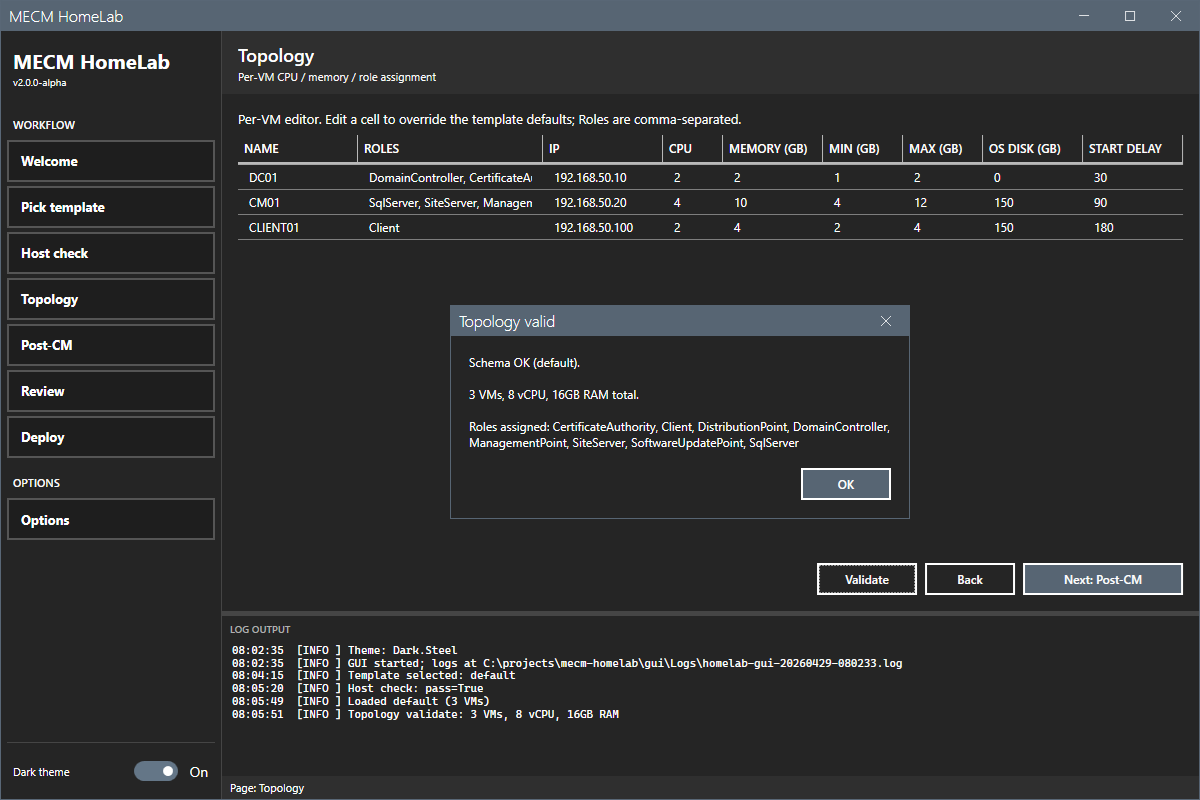
There is also a WPF wizard for people who would rather click through it.
It composes the same Install-HomeLab call against the same topology
data, with validation before anything gets provisioned:
Who this is for
MECM admins who need a disposable, truthful replica of the product they run in production: testing application packaging, validating a claim before repeating it in a runbook, rehearsing an upgrade, or having a site you can break on purpose. The lab is cheap enough to destroy that you actually destroy it, and provable enough that "fresh build" means something.
Requirements: a Windows 10/11 Pro or Server host with 32 GB RAM and about 300 GB free, PowerShell 7.6, and the eval ISOs staged. The README walks through all of it.